Introduction
If Outlook is slow to open, search or respond, it can happen if you have a PST file that is too large. Outlook stores e-mail messages, contacts, calendars, notes and other mailbox data in a PST (Personal Storage Table) file. The more you use Outlook, the bigger this file becomes, especially if you regularly receive emails with large attachments or keep years of old messages.
Most users think that deleting unwanted emails is enough to shrink the PST file. Unfortunately, that’s not how Outlook works. Typically when you delete e-mail messages and then empty the Deleted Items folder, the size of the PST file does not change until you compact it.
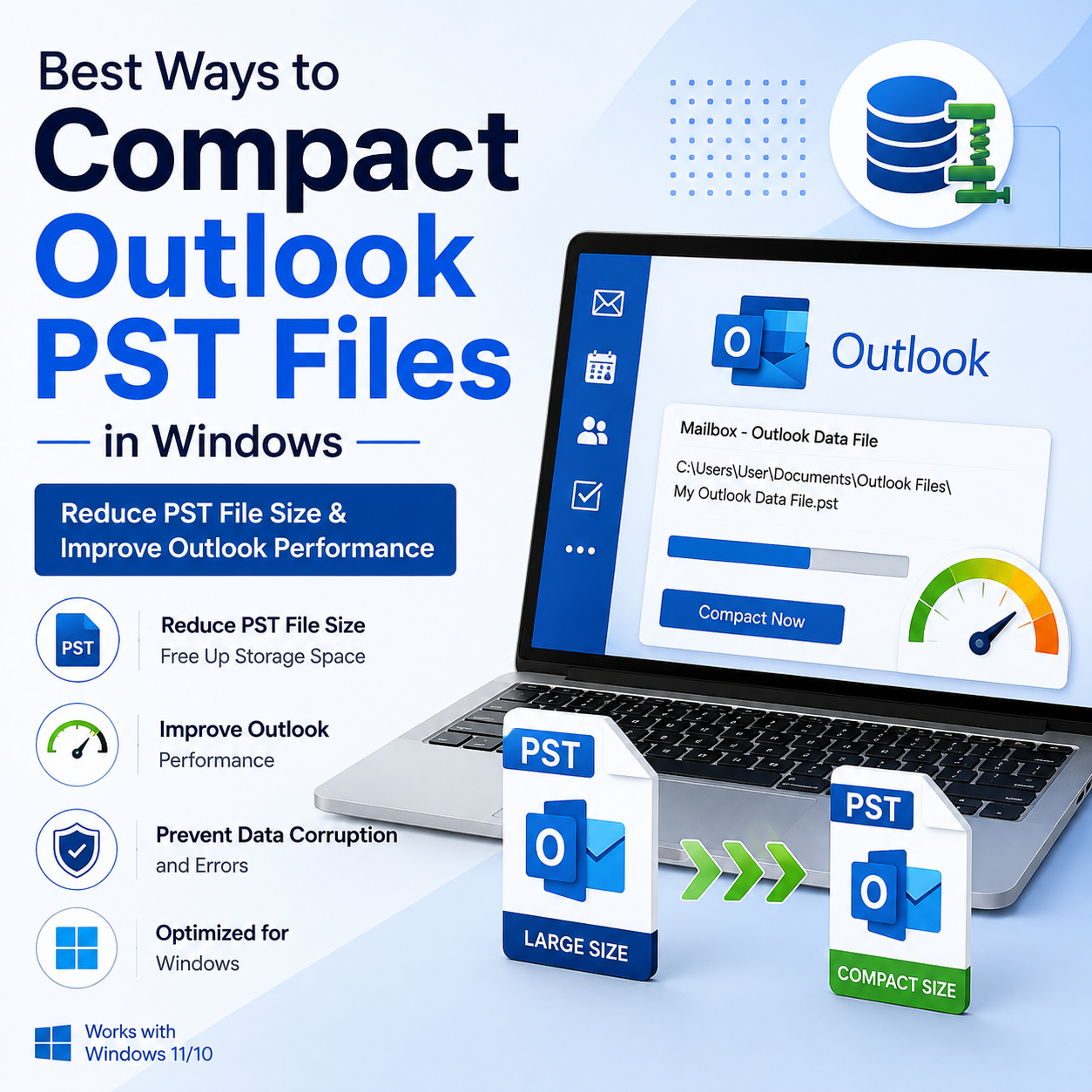
The good thing is you can safely compact Outlook PST files without losing any of the important data. If you want to speed up Outlook, free up disk space or prepare a PST file for backup or migration, there are a number of effective methods.
In this tutorial, you will learn how to compact Outlook PST files in Windows in the best way. It has both manual techniques as well as a professional solution that makes the whole process easy.
Why Users Need to Compact Outlook PST Files
1. Improve Outlook Performance
Outlook can also slow down with large PST files. You may see delays when opening folders, searching emails, or sending and receiving emails. This also helps to reduce the size of the PST file which will improve the overall responsiveness.
2. Reduce Storage Space
Outlook PST file size can grow exponentially with old emails and attachments. Compacting frees up unused space and helps recover valuable disk space.
3. Create Smaller Backups
Fewer PST files are easier and quicker to backup, copy and store on external drives or cloud storage.
4. Simplify Email Migration
When migrating Outlook data to another computer or email client, compacting PST files can save you time in migration.
5. Minimize the Risk of PST Corruption
Larger PST files are more likely to face corruption and performance issues. A small file keeps the mailbox healthy.
Method 1: Use Outlook's Built-in Compact Now Feature
Best for: Free solution for Microsoft Outlook users.
Steps
- Open Microsoft Outlook.
- On the File menu, click Account Settings and then Account Settings.
- Select the Data Files Tab.
- Choose the PST file that you want to compact.
- Click Settings.
- Click Compact Now.
- “Waiting on Outlook to complete.”
Pros
- Right inside Outlook.
- No additional software needed.
- Individual PSTs are secure.
Cons
- Requires Outlook to be installed.
- Can be slow with large PST files.
- Limited control over the compaction process.
Method 2: Delete Unnecessary Emails Before Compacting
Best for: People with overflowing mailboxes.
Steps
- Remove junk mail and folders.
- Empty the Deleted Items folder.
- If you are able, try to remove unnecessary attachments.
- Use the Compact Now feature in Outlook.
- If the PST file size is reduced.
Pros
- Adds additional storage.
- Helps to clean up the mailbox.
- Boosts the performance of Outlook.
Cons
- There is no way to recover deleted emails if they are not backed up.
- Big mailboxes are slow.
Method 3: Archive Old Emails
Best for: People who want to keep older messages but don't want to increase mailbox size.
Steps
- Open Outlook.
- Select File > Tools > Clean Up Old Items.
- Select folders to archive.
- Enter a date range.
- Save the archive PST file.
- Compress the original PST file.
Pros
- Archives old e-mails.
- Reduces the size of the primary PST file.
- Get your mailbox organized.
Cons
- Creates more archive files.
- Requires careful handling of archived data.
Method 4: Compress Large Attachments
Best for: Users with a lot of large attachments in their PST files.
Steps
- Search for Large Email Attachments.
- Download attachments to your local disk.
- If you don’t need the attachments any longer, delete them from Outlook.
- Deleted Items 0.
- Compress the PST file.
Pros
- Significantly reduces PST size.
- Improves Outlook performance.
Cons
- Attachments must be dealt with individually.
- Large Mailboxes: Process is manual.
Professional Solution to Compact Outlook PST Files
Manual techniques are good for basic mailbox maintenance, but can be time-consuming when handling very large PST files or multiple Outlook data files. Also require Outlook to be installed and may not provide the flexibility needed for advanced file management.
DataVare Outlook PST Compact Tool is the best way to compact Outlook PST files in Windows. The software reduces the PST file size while keeping the original mailbox structure, emails, contacts, calendars, attachments and other Outlook items.
Users can process large PST files in a flash with a simple interface instead of cleaning and compacting each file manually. The software helps to optimize mailbox size without affecting email integrity making it useful for home users and IT professionals who manage Outlook data regularly.
Huge PST archives are a great help for organizations as it helps in storage management and improve Outlook’s performance without affecting data safety.
Main Features and Advantages
- Compact large PST files safely in Outlook.
- Reduces wasted space in PST files.
- Enhances Outlook speed and responsiveness.
- Supports large PST Files.
- Easy-to-use and simple interface.
- Ideal for both personal and business use.
- Compatible with most Windows operating systems.
Final Thoughts
Large Outlook PST Files Make Your System Slower, Take Up Unnecessary Space, and Make Mailbox Management Difficult. The good news is that there are some reliable ways to compress PST files without losing any important email data.
Good for basic maintenance. Outlook compact built-in Compact Now option, and to help further reduce mailbox size, delete unnecessary emails, archive old messages and remove oversized attachments. But these are time-consuming and labour-intensive methods, especially if you have large or multiple PST files.
For those users who are looking for a quick and convenient fix, Compress PST Tool makes the whole compaction process easy and keeps the integrity of the mailbox. Whether it is to reduce storage usage, to improve the performance of Outlook or to prepare PST files for backup or migration, the right method will go a long way in keeping your Outlook data organized and efficient.
Frequently Asked Questions
1. Does compacting a PST file delete emails?
No, Compacting just frees the unused space in the PST file. Your Outlook data (emails, contacts, calendars, etc.) remains unaffected.
2. Why doesn't my PST file become smaller after deleting emails?
Deleting emails just clears space. Run the compact process to recover unused storage space.
3. Can I compact multiple PST files?
Yes. You can compress each PST file individually via Outlook, but it is much easier to manage multiple PST files with the help of professional tools.
4. Is it safe to compact a large PST file?
Yes. Generally, if the PST file is in good health and you take a backup before compacting then it is safe and helps in improving the performance of Outlook.
5. Why should I use Compress PST Tool?
The software is user-friendly as it makes PST compaction easy, preserves all Outlook data, supports large PST files and helps to reduce file size effectively without affecting the original mailbox structure.


 Search in Classifieds
 Search in Groups
 Search in Polls
 Search in Members
 Search in Members
 Search in News
 Search in Businesses
 Search in Contests
 Search in Events
 Search in Music Albums
 Search in Music Songs
 Search in Quotes
 Search in Site Team



Share this page with your family and friends.